Ultimate VPN Guide for iOS & Android Mobile Devices
We use our smartphones more than our computers, constantly connecting to untrusted public Wi-Fi networks at cafes, airports, and hotels. Securing your mobile device with a VPN is no longer optional—it's mandatory. This guide covers how to set up, optimize, and troubleshoot VPNs on iOS and Android devices.
1. Installation via App Store and Google Play
Unlike desktop environments, installing a VPN on a mobile device is highly streamlined thanks to centralized app stores.
- Search for your chosen premium VPN in the Apple App Store (iOS) or Google Play Store (Android).
- Download the app and log in with your credentials.
- When you tap "Connect" for the first time, your OS will display a system prompt asking to "Add VPN Configurations" or "Allow Connection Request". You must accept this prompt and authenticate with your passcode, Face ID, or fingerprint.
Note for users in restrictive countries: If the VPN app is removed from your local App Store, you will need to create a foreign Apple ID (for iOS) or download the APK file directly from the provider's website (for Android).
2. The Danger of Public Wi-Fi
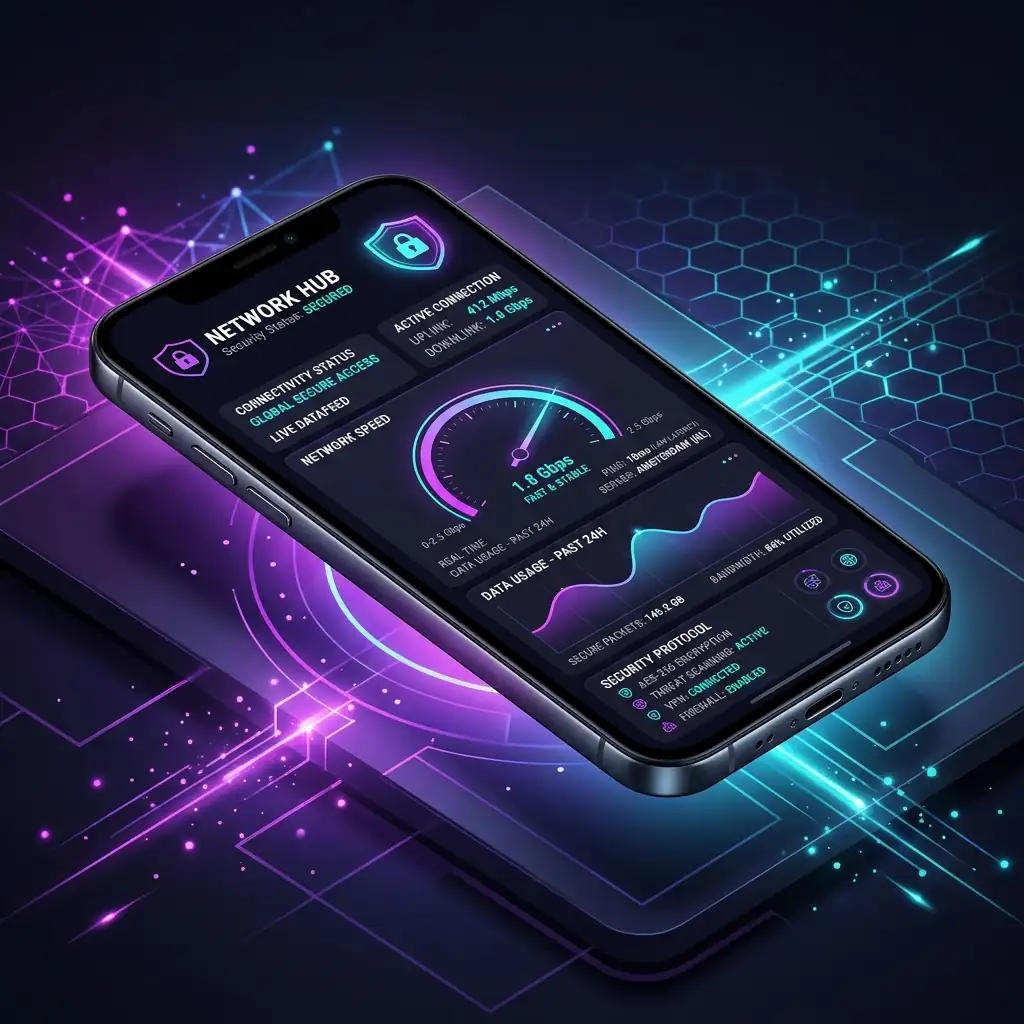
Free public Wi-Fi networks in coffee shops or airports are often unencrypted. Anyone with basic hacking tools connected to the same network can intercept your passwords, session cookies, and private messages.
Premium VPN apps offer a feature called Auto-Connect on Untrusted Wi-Fi. Enable this in the settings. Your phone will automatically establish a secure VPN tunnel the moment it connects to any Wi-Fi network that isn't saved as a "Trusted Network" (like your home Wi-Fi), ensuring you are never exposed.
3. Battery Optimization and Always-On VPN
A common concern is that running a VPN 24/7 will drain the phone's battery. Thanks to the highly efficient WireGuard and IKEv2 protocols, modern VPNs consume very little power (typically less than 2-3% of your daily battery drain).
For Android users, you can navigate to the Android system settings > Network & Internet > VPN, tap the gear icon next to your VPN, and enable "Always-on VPN" and "Block connections without VPN". This acts as a system-wide kill switch, preventing any app from leaking data in the background if the VPN drops.
4. Troubleshooting Mobile Connection Drops
Mobile devices constantly switch between cell towers and Wi-Fi networks. This "handshake" process can sometimes confuse the VPN tunnel.
- If you experience freezing or dropped connections, go into the VPN settings and switch the protocol to IKEv2. IKEv2 was specifically designed to handle network switching smoothly.
- Ensure your phone's aggressive battery-saving modes aren't forcefully closing the VPN app in the background. On Android, you may need to exclude the VPN app from "Battery Optimization" settings.
Premium IPLC Dedicated Network Acceleration
Stable, lightning-fast, and hassle-free global streaming access. Backed by enterprise-grade SLA uptime guarantees — the ultimate choice for 4K streaming during peak hours and heavy international workloads.
- Pure Private NetworkNo throttling during peak hours
- Native IP NodesInstant Netflix 4K playback
- Unlimited DevicesShare with the whole family
- Premium Budget PlansBest bang for your buck